QuickAppRing for macOS

Your apps, one key away.

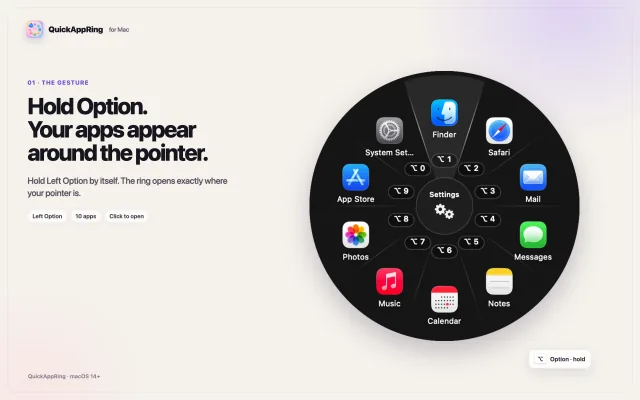
Hold Left Option and press a top-row number to open an app. Hold the key by itself to reveal your App Ring around the pointer, then click an app.

Coming soon on the Mac App Store

Free · macOS 14+ · No account

QuickAppRing Launcher showing ten Apple apps arranged around the App Ring
Actual QuickAppRing interfaceTen slots · top-row 1–9 and 0

One gesture. Two ways to move.

Option+number is the fastest route when muscle memory takes over. The App Ring keeps every slot visible when you want to choose with the pointer.

The working loop

Built around the way you already use a Mac.

Arrange the apps once. QuickAppRing stays out of the way until your chosen trigger appears.

  1. 01
    Hold Left Option to reveal the ring.
  2. 02
    Press Option+number for a direct launch.
  3. 03
    Click a segment when the ring is visible.
  4. 04
    Bring an open app forward instead of creating a duplicate.
  5. 05
    Pause shortcuts inside selected apps.
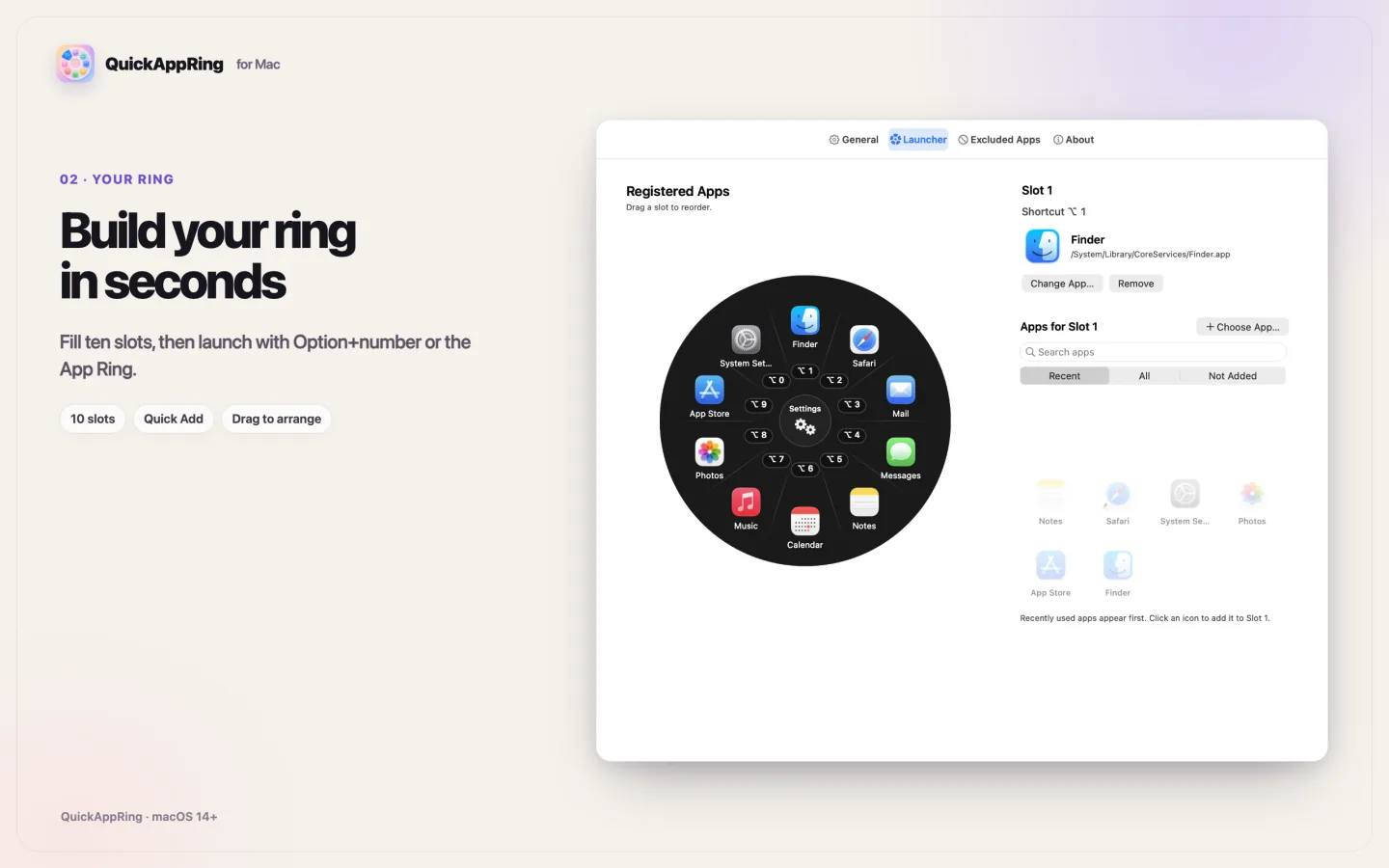
QuickAppRing Launcher pane with the App Ring and Quick Add suggestions
Arrange up to ten apps. Quick Add reads local app details only when you open the Launcher pane.
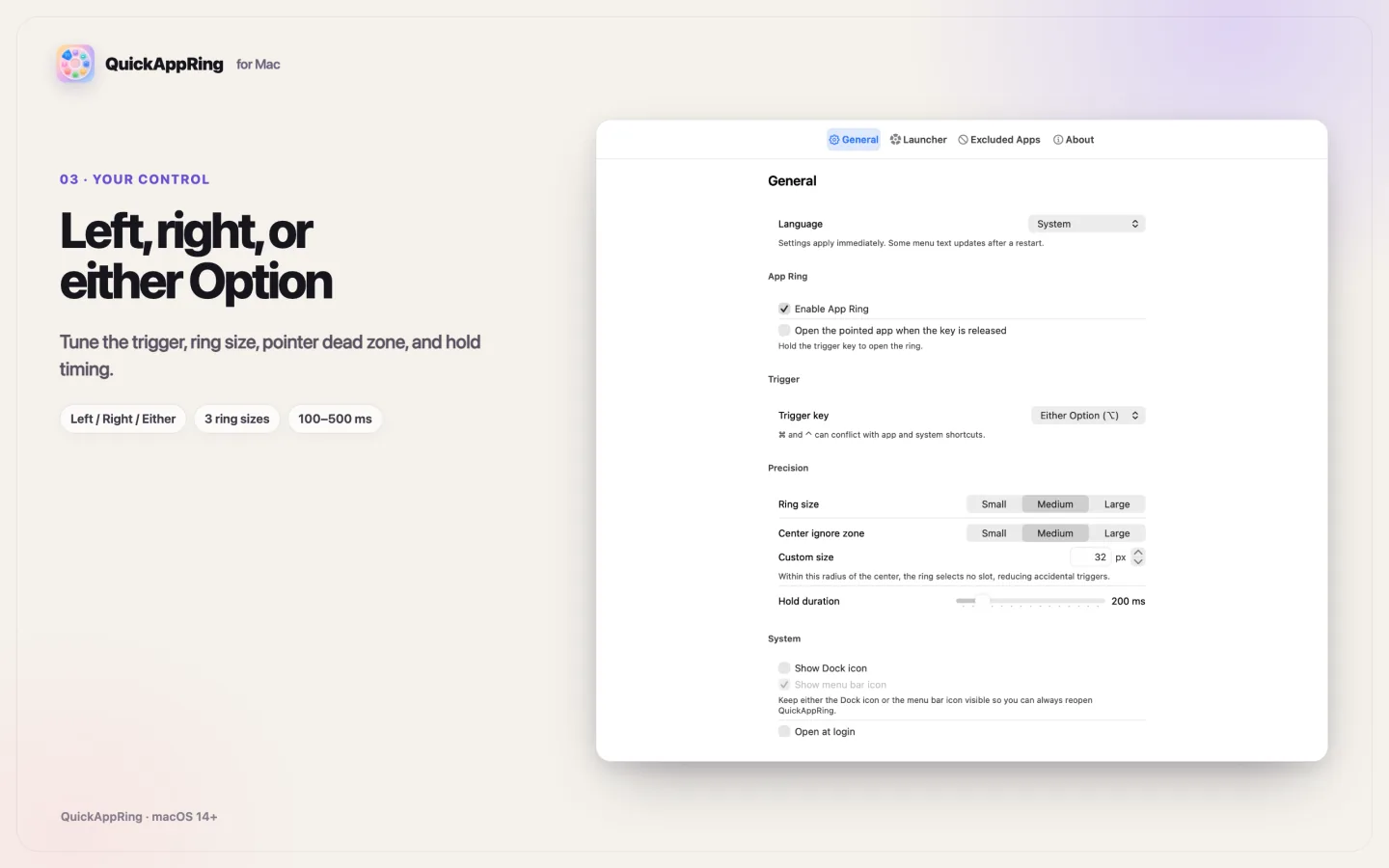
QuickAppRing General pane with trigger, timing, ring size, and menu bar settings
Choose the trigger, hold time, ring size, and center ignore zone that feel natural to you.
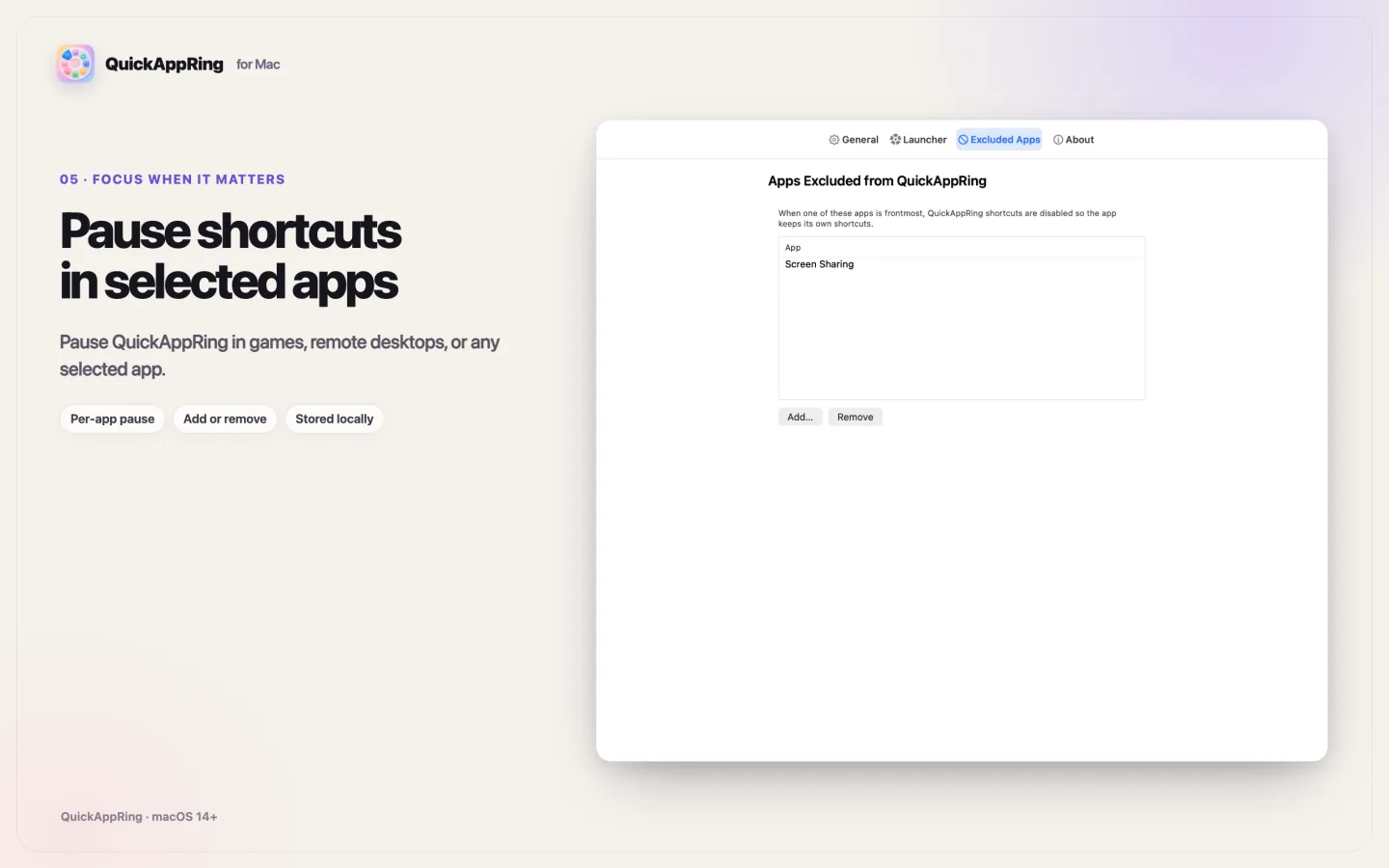
QuickAppRing Excluded Apps pane showing Screen Sharing in the pause list
Keep another app's shortcuts intact by adding it to the excluded list.

Small choices that make it dependable.

The fastest launcher is the one you do not have to think about. QuickAppRing keeps its controls explicit and its runtime narrow.

01 · Trigger

Left, right, or either Option.

Use Left Option by default, or choose Right Option, Either Option, Command, or Control. The top-row number keys map directly to slots 1–10.

02 · Precision

Shape the ring to your hand.

Tune hold duration, ring size, and the center ignore zone to reduce accidental selection.

03 · Boundaries

Offline by design, not by promise alone.

The app is sandboxed and has no account, analytics, ads, tracking, subscription, in-app purchase, or network client entitlement. Your registered apps and settings stay on your Mac.

Watch the ring in action.

This 21-second product preview shows both ways to move: a direct Option+number shortcut and the visual App Ring.

21-second product demo · No narration or musicHold Option, use 1–9 for slots 1–9 or 0 for slot 10, or move into the App Ring and click an app.

Your app list stays on your Mac.

No account or tracking
There is nothing to sign into and no analytics or advertising SDK.
Normal shortcuts need no accessibility access
QuickAppRing does not require Accessibility or Input Monitoring permission for ordinary hot-key capture.
Quick Add is explicit
macOS may ask for App Management access before Quick Add reads installed-app names, icons, paths, identifiers, and last-used dates locally.
Support is your choice
Email opens in your default mail app. QuickAppRing itself does not send support content.

QuickAppRing 1.0

Ten apps. One familiar key.

Coming soon on the Mac App Store

Read support details